


Understanding Your Minelab Equinox LCD Display
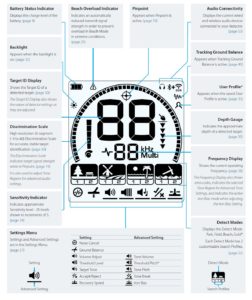
The Minelab Equinox series packs a lot of information into its compact LCD screen. Whether you're using the Equinox 600, 700, 800, or 900, the icon layout remains consistent across all models. Each symbol tells you something important about your detector's current status or what it's found.
Here's what every icon on your Equinox display means and why it matters for your detecting success.
Power and Connectivity Icons
Battery Status Indicator
This icon shows your remaining battery life in real-time. The Equinox runs on rechargeable lithium-ion batteries, and you'll typically get 10-15 hours of detecting time depending on your settings.
When the battery icon shows one bar, you've got about an hour left. Don't ignore it - there's nothing worse than your detector dying mid-hunt at a productive site.
Audio Connectivity
These icons show whether you've got wired headphones plugged in or wireless headphones connected via Bluetooth. The Equinox 800 and 900 support both options, while the 600 and 700 are wired-only.
Backlight
Simply indicates when your screen backlight is active. Useful for early morning or evening detecting sessions, but it does drain the battery faster.
Target Information Display
Target ID Display
This large numerical display is your primary target identification tool. It shows values from -9 to 40, with different ranges indicating different types of metals:
- -9 to 0: Iron and ferrous metals
- 1 to 12: Foil, small gold, and some trash
- 13 to 19: Nickels and some jewelry
- 20 to 29: Pull-tabs, bottle caps, and mid-range conductors
- 30 to 40: Coins, silver, and high-conductivity targets
The Target ID also displays setting values as you adjust them, making it easy to see exactly what you're changing.
Discrimination Scale
The 50-segment scale at the bottom provides visual target identification that matches the numerical Target ID. Each segment represents a specific conductivity range.
In Pinpoint mode, this scale shows target signal strength instead of conductivity. The more segments that light up, the stronger the signal and typically the larger or closer the target.
Depth Gauge
Shows approximate target depth with segments representing roughly 2, 4, 6, and 8+ inches. Remember, this is just an estimate - soil conditions, target size, and orientation all affect actual depth readings.
Small targets often read deeper than they actually are, while large targets may read shallower.
Detection Mode and Settings Icons
Detect Modes
Your current detecting mode appears prominently on the display:
- Park: Best for general treasure hunting in parks and recreational areas
- Field: Optimized for agricultural areas and open fields
- Beach: Handles saltwater and wet sand conditions
- Gold: Fine-tuned for small gold nuggets and jewelry
Each mode has two customizable search profiles, giving you eight total preset options to work with different conditions.
Frequency Display
Shows your current operating frequency - either a single frequency (5kHz, 10kHz, 15kHz, 20kHz, or 40kHz) or "MF" for Multi-Frequency mode.
This display also shows error codes when something's wrong, indicates which tone region you're adjusting in advanced settings, and shows the active Iron Bias mode.
Sensitivity Indicator
Displays your current sensitivity level in increments of 5, from 1 up to 25. Higher sensitivity detects deeper targets but can also pick up more ground noise and interference.
Most experienced users run sensitivity as high as possible without getting constant false signals.
Ground Balance and Special Mode Icons
Tracking Ground Balance
When this icon appears, your detector is automatically adjusting to changing ground conditions as you hunt. It's especially useful in areas with variable mineralization.
You can also manually ground balance for more precise control in challenging conditions.
Beach Overload Indicator
This icon appears when the detector automatically reduces transmit power to prevent overload in extreme saltwater conditions. You'll mainly see this when surf detecting or hunting in very wet, salty sand.
When it's active, you'll lose some depth but gain stability in harsh beach conditions.
Pinpoint
Shows when Pinpoint mode is active. In this mode, the detector provides a steady audio tone that increases in volume as you get closer to the target center.
The discrimination scale changes to show signal strength rather than target ID when pinpointing.
User Profile
Indicates when you're using a saved custom profile rather than the factory preset modes. This lets you quickly switch between your personalized settings for different hunting scenarios.
Settings Menu
Shows when you're in the settings menu, where you can adjust advanced options like tone breaks, iron bias, recovery speed, and more.
Making Sense of Multiple Icons
The real skill comes from reading multiple icons together. For example, if you see a Target ID of 28, three depth gauge segments, and you're in Beach mode with the overload indicator showing, you know you've got a good deep target but the detector is working in challenging conditions.
The combination of Target ID number, discrimination scale position, and depth gauge gives you the most complete picture of what's below your coil.
Tips for Icon Interpretation
Don't rely on any single icon to make dig decisions. The Target ID might say "30" (coin range), but if you're getting inconsistent depth readings or the discrimination scale is jumping around, the target could be trash or multiple objects.
Pay attention to how icons behave as you sweep from different angles. Good targets usually give consistent readings, while trash often produces erratic displays.
The depth gauge is most accurate on coin-sized targets at moderate depths. Very shallow targets, large objects, and small items like earrings can give misleading depth readings.
